# Strengthen Your Small Business with Essential Cybersecurity Practices and Tips
In today’s digital age, cybersecurity is a vital concern for everyone, including solopreneurs running small businesses. With cyber threats becoming increasingly sophisticated, it’s crucial to protect your business from potential attacks. You might think that cybersecurity is only for tech-savvy individuals or large corporations, but the truth is, small businesses are often targeted because they tend to have weaker security measures.
This guide will walk you through essential cybersecurity practices and tips to strengthen your small business. We’ll cover password management, two-factor authentication (2FA) setup, email security, VPN usage for remote work, data backup strategies, and what to do if you get hacked. By the end of this article, you’ll have a clear understanding of how to protect your business without needing a technical background.
## Password Management: Your First Line of Defense
Passwords are your first line of defense against unauthorized access. However, managing them can be overwhelming, especially with the number of accounts you need to secure. Here’s where password managers like Bitwarden and 1Password come into play.
### Why Use a Password Manager?
– **Security**: Password managers generate strong, unique passwords for each of your accounts, reducing the risk of a breach.
– **Convenience**: They store and autofill passwords, saving you time and effort.
– **Accessibility**: Access your passwords from any device, ensuring you’re never locked out of your accounts.
### Getting Started with Bitwarden or 1Password
1. **Choose a Password Manager**: Both Bitwarden and 1Password offer excellent features. Bitwarden is open-source and offers a free version, while 1Password is known for its user-friendly interface and robust security features.
2. **Set Up Your Account**: Download your chosen password manager and create an account. Use a strong master password—this is the only password you’ll need to remember.
3. **Import Existing Passwords**: Most password managers allow you to import passwords from your browser or another manager.
4. **Generate Strong Passwords**: Use the password generator feature to create strong, unique passwords for each of your accounts.
5. **Regularly Update Passwords**: Change your passwords regularly and update them in your manager.
## Two-Factor Authentication (2FA): Adding an Extra Layer of Security
Two-factor authentication (2FA) adds an extra layer of security by requiring a second form of verification, typically a code sent to your phone, in addition to your password.
### How to Set Up 2FA
1. **Identify Supported Accounts**: Check which of your accounts support 2FA. Most major services, like Google, Facebook, and banking apps, offer this feature.
2. **Enable 2FA**: Go to your account settings and look for the 2FA option. Follow the instructions to link your phone number or an authenticator app like Google Authenticator or Authy.
3. **Store Backup Codes**: When you set up 2FA, you’ll often receive backup codes. Store these securely in your password manager in case you lose access to your phone.
4. **Regularly Check Your 2FA Settings**: Ensure that your 2FA settings are up-to-date and that you’re using the most secure method available.
## Email Security: Protecting Your Communication
Email is a common target for cyberattacks, making email security a top priority.
### Tips for Securing Your Email
1. **Use a Strong Password**: Ensure your email account password is strong and unique.
2. **Enable 2FA**: Add 2FA to your email account for an extra layer of security.
3. **Be Wary of Phishing**: Phishing emails often look legitimate but are designed to steal your information. Always verify the sender’s address and avoid clicking on suspicious links or attachments.
4. **Regularly Update Your Email Software**: Keep your email software up-to-date to protect against vulnerabilities.
5. **Use Email Encryption**: Consider using an email service that offers encryption, or use a plugin to encrypt sensitive emails.
## VPN for Remote Work: Secure Your Connection
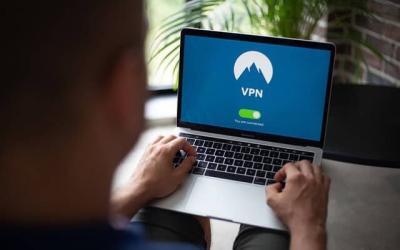
If you work remotely or travel frequently, using a Virtual Private Network (VPN) is essential to secure your internet connection.
### Benefits of Using a VPN
– **Protects Your Data**: Encrypts your internet traffic, protecting it from hackers.
– **Secures Public Wi-Fi**: Safeguards your data when using public Wi-Fi networks.
– **Maintains Privacy**: Hides your IP address, enhancing your online privacy.
### How to Choose and Use a VPN
1. **Select a Reliable VPN Provider**: Look for a VPN with strong encryption, a no-logs policy, and good reviews. Popular options include NordVPN, ExpressVPN, and CyberGhost.
2. **Install and Configure the VPN**: Download the VPN app on your devices and follow the setup instructions.
3. **Connect to the VPN**: Before accessing the internet, connect to the VPN to secure your connection.
4. **Regularly Update the VPN Software**: Keep your VPN software updated to ensure you’re protected against the latest threats.
## Data Backup Strategy: Safeguarding Your Business Information
Backing up your data is crucial in case of data loss due to cyberattacks or hardware failure.
### Developing a Data Backup Strategy
1. **Identify Critical Data**: Determine which data is essential for your business operations.
2. **Choose a Backup Method**: Options include cloud storage services like Google Drive, Dropbox, or external hard drives.
3. **Schedule Regular Backups**: Set up automatic backups to ensure your data is consistently backed up.
4. **Test Your Backups**: Regularly test your backups to ensure you can restore your data if needed.
5. **Secure Your Backups**: Encrypt your backups and store them in a secure location.
## What to Do If You Get Hacked: Quick Response Plan
Despite your best efforts, breaches can happen. Having a response plan can minimize damage.
### Immediate Steps to Take
1. **Stay Calm**: Panicking can lead to mistakes. Take a deep breath and proceed methodically.
2. **Disconnect Affected Devices**: Disconnect any compromised devices from the internet to prevent further damage.
3. **Change Passwords**: Change passwords for all affected accounts, starting with your email and financial accounts.
4. **Check for Unusual Activity**: Review your accounts for any unauthorized transactions or changes.
5. **Notify Affected Parties**: Inform clients, partners, or employees if their data may have been compromised.
6. **Consult a Professional**: If the breach is serious, consider hiring a cybersecurity professional to assess and mitigate the damage.
## Security Checklist
To help you implement these practices, here’s a handy security checklist:
– [ ] Set up a password manager and generate strong passwords.
– [ ] Enable 2FA on all supported accounts.
– [ ] Educate yourself and your team about phishing and email security.
– [ ] Choose and use a reliable VPN for all remote work.
– [ ] Develop and implement a data backup strategy.
– [ ] Create a response plan for potential security breaches.
By following these essential cybersecurity practices, you’ll significantly reduce the risk of a cyberattack on your small business. Remember, cybersecurity is an ongoing process, and staying informed about the latest threats and solutions is key to maintaining your business’s security. With these actionable steps, you can confidently protect your business and focus on what you do best.